LU12b - CSS Keyframe Animationen
In dieser Lerneinheit lernen Sie, wie CSS Keyframe Animationen funktionieren — und wie Sie diese sinnvoll in eine Vue.js-Applikation integrieren.
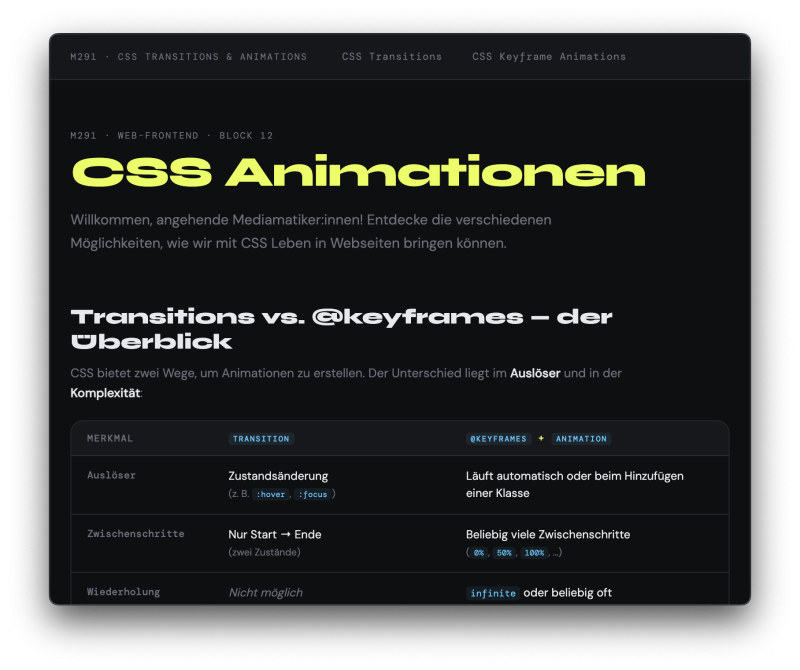
Transitions vs. Keyframes
CSS bietet zwei Wege, um Animationen zu erstellen. Der Unterschied liegt im Auslöser und in der Komplexität:
| Merkmal | transition | @keyframes + animation |
|---|---|---|
| Auslöser | Zustandsänderung (z. B. :hover) | Läuft automatisch oder per Klasse |
| Zwischenschritte | Nur Start → Ende (zwei Zustände) | Beliebig viele Zwischenschritte (0%, 50%, 100%) |
| Wiederholung | Nicht möglich | infinite oder beliebig oft |
| Typische Anwendung | Hover-Effekte, UI-Feedback | Ladeanimationen, Einblendungen, Aufmerksamkeit |
Faustregel: Brauchen Sie mehr als zwei Zustände, oder soll die Animation von selbst laufen? → @keyframes.
Aufbau einer Keyframe Animation
Eine Keyframe Animation besteht immer aus zwei Teilen:
1. Der @keyframes-Block — definiert die Zwischenschritte der Animation:
@keyframes meinAnimation {
  0%   { opacity: 0; transform: scale(0.8); }  /* Start */
  60%  { opacity: 1; transform: scale(1.05); } /* Zwischenstation */
  100% { opacity: 1; transform: scale(1); }    /* Ende */
}
2. Die animation-Property — verbindet den Block mit einem Element:
.element {
  animation: meinAnimation 0.4s ease-out forwards;
  /*          ↑Name         ↑Dauer ↑Timing  ↑Fill-Mode */
}
Die animation-Shorthand-Property fasst mehrere Werte zusammen:
animation: [name] [duration] [timing-function] [delay] [iteration-count] [direction] [fill-mode];
Keyframes vereinfachen: Partial Keyframes
Sie müssen nicht immer from / 0% und to / 100% angeben. Wenn nur ein Endpunkt definiert wird, startet die Animation automatisch vom aktuellen CSS-Wert des Elements:
/* Ausführlich: */
@keyframes spin {
  from { transform: rotate(0deg); }
  to   { transform: rotate(360deg); }
}

/* Kompakter — gleiches Ergebnis: */
@keyframes spin {
  to { transform: rotate(360deg); }
}
Dieser Partial Keyframes-Trick spart Code, wenn der Startwert dem CSS-Default des Elements entspricht. Er funktioniert auch bei komplexeren Animationen: Wenn Sie nur 40% und 80% definieren, interpoliert der Browser den Rest automatisch.
📺 Kevin Powell erklärt diesen Trick in 5 Minuten: Simplifying CSS animations
fill-mode: Was passiert nach der Animation?
Ohne fill-mode springt das Element nach der Animation auf seinen ursprünglichen Zustand zurück:
Zeit:     0ms ─────────── 400ms ──────────
none:     opacity:0 → opacity:1 → opacity:0  ← springt zurück!
forwards: opacity:0 → opacity:1 → opacity:1  ← bleibt stehen
.element {
  animation: fadeIn 0.4s ease forwards;
  /*                          ↑ bleibt im End-Zustand */
}
| Wert | Bedeutung |
|---|---|
none | Standard: springt nach der Animation zurück |
forwards | Bleibt im End-Zustand (häufigster Anwendungsfall) |
backwards | Nimmt den Start-Zustand bereits während delay an |
both | Kombination: forwards + backwards |
animation-delay: Gestaffelte Animationen
Mit animation-delay können mehrere Elemente zeitversetzt starten — der sogenannte Treppen-Effekt:
/* Fester Delay pro Element: */
.item:nth-child(1) { animation-delay: 0ms; }
.item:nth-child(2) { animation-delay: 100ms; }
.item:nth-child(3) { animation-delay: 200ms; }
Eleganter mit CSS Custom Properties — der Index wird per style-Attribut übergeben:
.item {
  animation: fadeIn 0.4s ease forwards;
  animation-delay: calc(var(--i) * 80ms);
  /* Item 0: 0ms, Item 1: 80ms, Item 2: 160ms, ... */
}
In Vue.js kann der Index aus v-for direkt als CSS-Variable übergeben werden:
<div
  v-for="(item, index) in faqItems"
  :key="item.id"
  class="item"
  :style="{ '--i': index }"
>
Wichtig: Stagger-Animationen mitanimation-delaybrauchenanimation-fill-mode: backwardsoderboth, damit die Elemente während der Wartezeit noch im Startzustand (z. B.opacity: 0) bleiben und nicht kurz sichtbar aufblitzen.
Ladeanimationen: zwei klassische Muster
Spinner (Rotation)
@keyframes spin {
  to { transform: rotate(360deg); }
}

.spinner {
  width: 36px;
  height: 36px;
  border: 4px solid #e0e0e0;
  border-top-color: #444;
  border-radius: 50%;
  animation: spin 0.75s linear infinite;
}
linear ist bei Spinners entscheidend: Ein ease-in-out würde das Drehen ungleichmässig wirken lassen.
Bounce Dots
@keyframes bounce {
  0%, 80%, 100% { transform: translateY(0); }
  40%           { transform: translateY(-10px); }
}

.dot {
  width: 10px;
  height: 10px;
  border-radius: 50%;
  background: #888;
  animation: bounce 1.2s ease-in-out infinite;
}

.dot:nth-child(2) { animation-delay: 0.2s; }
.dot:nth-child(3) { animation-delay: 0.4s; }
Die 0%- und 100%-Keyframes sind identisch — das sorgt für eine fliessende, endlose Wiederholung ohne abrupten Sprung.
animation-play-state: Pausieren
Eine laufende Animation kann per CSS oder JavaScript pausiert werden:
/* Per CSS – z. B. bei Hover: */
.spinner:hover {
  animation-play-state: paused;
}
// Per JavaScript:
element.style.animationPlayState = 'paused';
element.style.animationPlayState = 'running';
Performance-Hinweis
Animieren Sie wenn immer möglich nur transform und opacity. Diese Properties werden direkt auf der GPU berechnet und lösen kein teures Reflow (Neuberechnung des Layouts) aus:
/* ✅ Performant — GPU-beschleunigt: */
@keyframes gut {
  from { opacity: 0; transform: translateY(10px); }
  to   { opacity: 1; transform: translateY(0); }
}

/* ⚠️ Langsamer — löst Reflow aus: */
@keyframes langsam {
  from { height: 0; margin-top: 20px; }
  to   { height: 100px; margin-top: 0; }
}
Demo-Seite
Weiterführende Ressourcen
- 📺 Kevin Powell – Simplifying CSS animations (5 Min., Englisch)
- 📖 Josh W. Comeau – Keyframe Animations (sehr empfehlenswert)